Why there are Amazon links here: Brave Review is paid a commission for qualifying Amazon purchases made through the links below. Your price does not change, and using our links is entirely optional. How this works
Best Dock Placement in a Small Room for a Clutter-Free Desk
Dock placement in a small room is mostly a storage problem: the laptop dock, its power brick and the cable nest around it eat desk space that a compact setup cannot spare. The five picks below solve that in two ways — brackets that move the dock itself under the desk or onto a wall, and power strips that put outlets where the cables already run. Remote workers in studio apartments, students in dorm rooms and anyone sharing a desk with a partner will find a fit here. The overview table below narrows the field fast; the reviews explain the trade-offs.
The Picks at a Glance
| Product | Key Spec | Best Use | Price Tier |
|---|---|---|---|
| Jgstkcity Desk Clamp Power Strip | 3 AC outlets, 2 PD 20W USB-C, clamps to 1.96" edge | Adding power at the desk edge with no drilling | Budget |
| Metal Mount for Dell Docking Station | Under-desk and wall bracket, cable ties included | Hiding a Dell dock and its power adapter | Budget |
| Under Desk Mount Holder for HP USB-C Dock G5 | Iron rack, hardware included, holder only | Freeing desk space under an HP G5 dock | Budget |
| Metal VESA Mount and Under Desk Mount for HP USB-C Dock G5 | VESA and under-desk options, holder only | Wall or monitor-arm placement for an HP G5 | Budget |
| Power Strip with 2 USB-A, 2 USB-C, AC Outlet Black Compact | In-drawer charging station, compact black body | Charging inside a drawer to clear the desktop | Premium |
1. Jgstkcity Desk Clamp Power Strip
Type: Clamp-on desk edge power strip
Outlets: 3 AC outlets
USB: 2 PD 20W USB-C ports
Mounting: Clamp fit for 1.96" tabletop edge
Total output: 40W fast charging
Listing: ETL Listed

Check the current price on Amazon
This is the pick for anyone whose dock lives on the desk because there is nowhere else to plug it in. The clamp grips the tabletop edge and holds the strip at the rim, so outlets and USB ports sit within reach without a cable crossing the work surface. Two USB-C PD ports at 20W each cover a phone or a tablet, and three AC outlets take the dock’s power brick plus a monitor or lamp. The 40W total budget is spread across the ports, so heavy simultaneous charging is not the point — convenience is.
It suits renters and small-room workers who cannot drill into a desk or wall and want power at the edge rather than under it. The clamp design means the desk edge itself is the install, which takes minutes. Trade-off: the clamp only fits a tabletop edge of the stated thickness, and the 40W shared output means a laptop dock plus two phones will charge more slowly than separate chargers would.
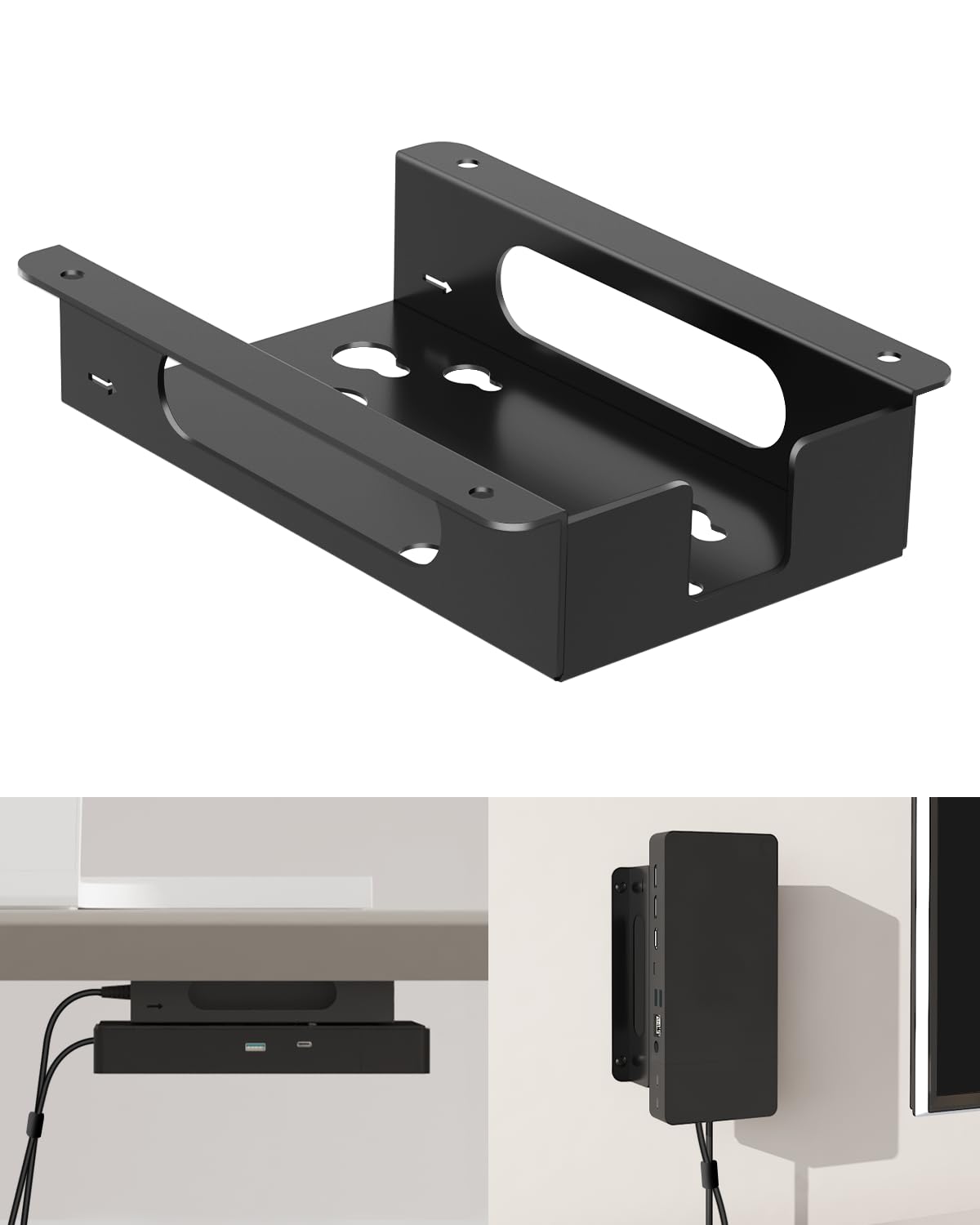
2. Metal Mount for Dell Docking Station Under Desk and Wall Mount
Type: Under-desk and wall mounting bracket
Compatibility: Dell UD22, WD19, WD19S, WD22TB4, WD19TBS, WD25 and SD25 series docks
Includes: Cable ties
Also holds: Power adapter
Material: Metal
Check the current price on Amazon
Dell docks are large, and their power bricks are larger, so this bracket earns its place by holding both. The metal frame screws to the underside of a desk or to a wall, and the included cable ties route the dock’s leads along the same path instead of dangling. Moving the dock off the desktop is the single biggest space win in a small room, and this does it without asking the buyer to build anything.
It suits Dell owners who already know their dock model and want it out of sight but still ventilated and reachable. The wall option matters in rooms where the desk has no clear underside. Trade-off: the bracket is cut for the listed Dell series only — owners of other brands, or of Dell docks outside that list, will find the holes and cradle do not line up.
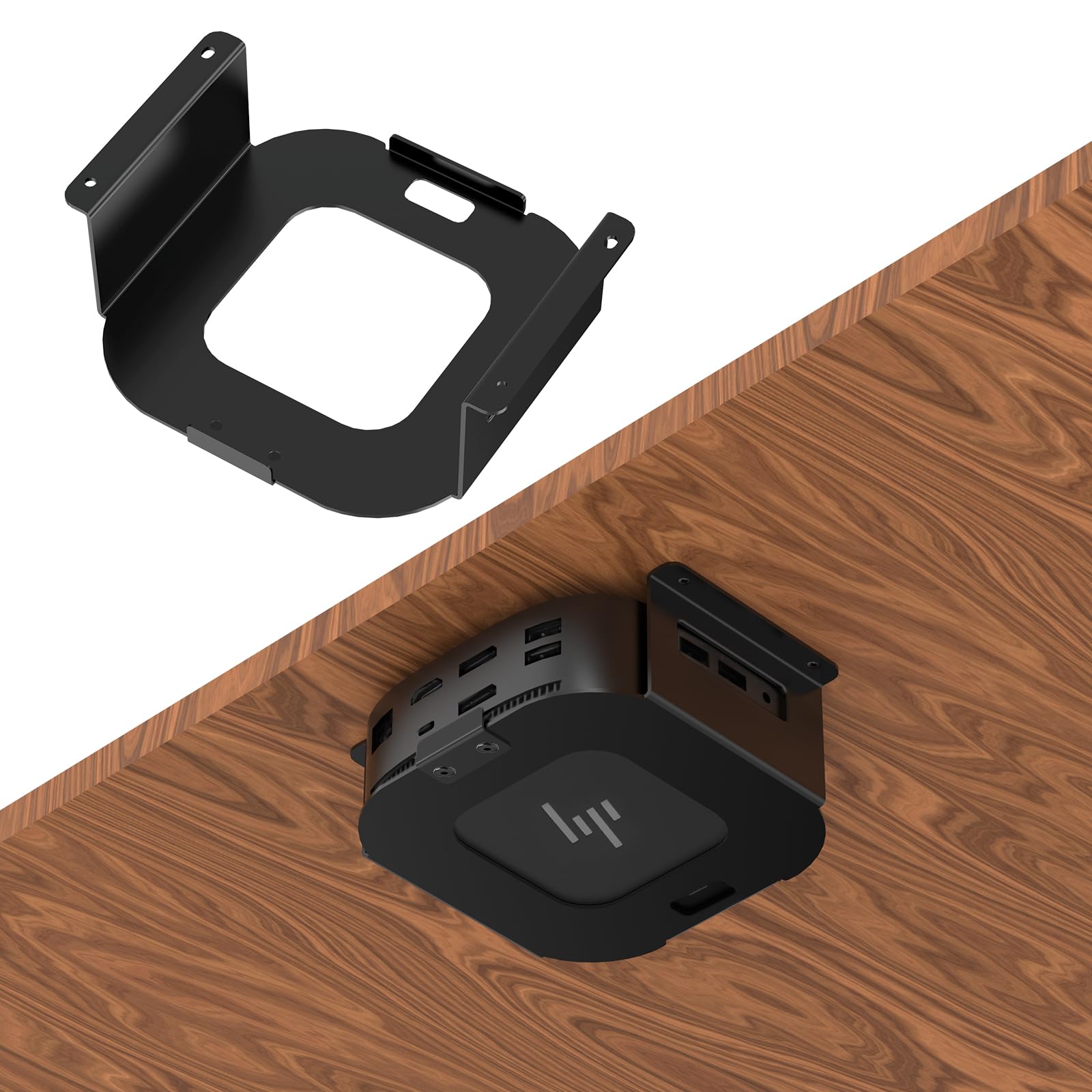
3. Under Desk Mount Holder for HP USB-C Dock G5
Type: Under-desk storage rack
Compatibility: HP USB-C Dock G5
Material: Iron
Includes: All mounting hardware
Color: Black
Contents: Holder only
Check the current price on Amazon
This is the straightforward under-desk answer for HP G5 owners: an iron cradle that screws to the desk underside and holds the dock in a fixed position. The hardware comes in the box, so the install is a screwdriver job rather than a shopping trip. Iron rather than plastic means the holder does not flex under a dock that is heavier than it looks, and the black finish disappears against most desk undersides.
It suits HP USB-C Dock G5 owners in small rooms who want the dock off the desktop but still cabled to a laptop above. Buyers who move the desk often should note that this is a semi-permanent install. Trade-off: the rack is shaped for one dock family, so it is a poor buy for anyone who might switch laptop brands, and the dock itself is not included.
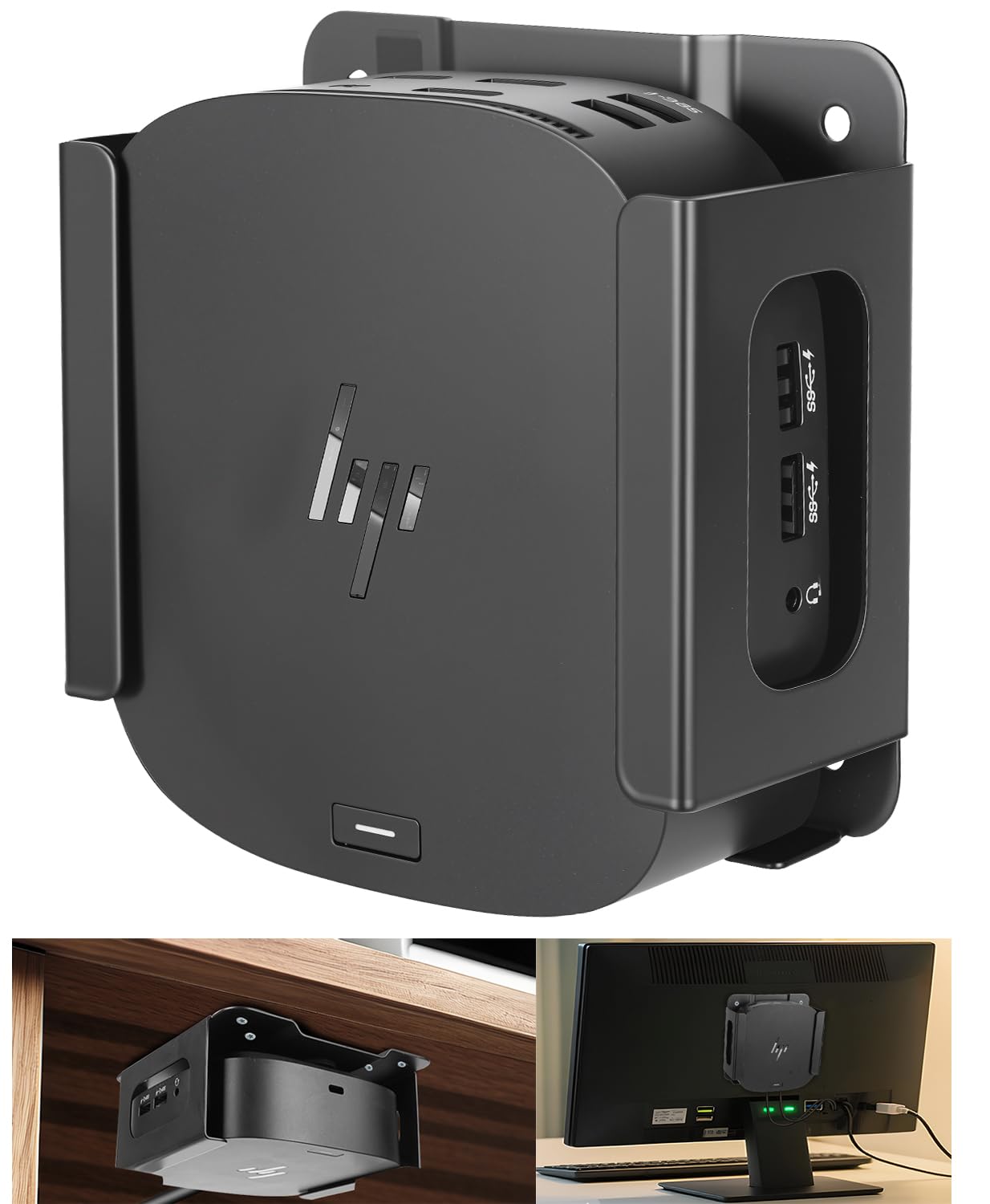
4. Metal VESA Mount and Under Desk Mount for HP USB-C Dock G5
Type: VESA and under-desk mount
Compatibility: HP USB-C Dock G5
Mount options: Wall and under-desk
Material: Metal
Color: Black
Contents: Holder only
Check the current price on Amazon
Where the previous pick is under-desk only, this bracket adds a VESA pattern, which opens up wall mounting and attachment to monitor arms and stands. In a tight room the wall behind the desk is often the only free surface, and hanging the G5 dock there keeps both the desktop and the floor clear. The metal body handles the dock’s weight and the black finish stays out of sight.
It suits HP G5 owners whose desk has no usable underside, or who want the dock to travel with a monitor arm instead of the desk. Buyers who need a holder for a different dock brand should look elsewhere. Trade-off: VESA mounting only pays off if the buyer already has a compatible arm or wall point, and the holder ships without the dock, screws for every wall type or cable management extras.
5. Power Strip with 2 USB-A, 2 USB-C, AC Outlet Black Compact In-Drawer Charging Station
Type: Compact in-drawer charging station
Ports: 2 USB-A, 2 USB-C, 1 AC outlet
Color: Black
Format: Compact in-drawer power strip
Model: LF-DOC1

Power Strip with 2 USB-A, 2 USB-C, AC Outlet Black Compact in-Drawer Charging Station, LF-DOC1
Check the current price on Amazon
This one takes a different approach: instead of moving the dock, it moves the charging. The compact strip is sized to sit inside a drawer, so phones, earbuds and tablets charge out of sight while the desktop stays clear. Two USB-A and two USB-C ports cover most small devices, and the single AC outlet handles one brick — a lamp adapter, a small dock supply or a desk fan. The black body hides dust and marks better than white in a drawer.
It suits buyers in very small rooms where the desk surface is the only flat space and every device competes for it. It is the premium pick here because the in-drawer format costs more than a standard strip. Trade-off: one AC outlet is a hard limit, so it cannot replace a full power strip for a desktop with a monitor, dock and speakers, and a drawer install needs a route for the cable to close without pinching.
Before You Buy
- Compatibility: Brackets are cut for specific dock families. Confirm the exact dock model before ordering, because a Dell bracket will not hold an HP dock and vice versa.
- Mounting surface: Under-desk brackets need a flat, solid underside; VESA and wall options need a wall point or a compatible arm. Measure the free space before committing.
- Desk edge thickness: Clamp-style strips fit a stated tabletop edge range only, so check the desk’s thickness at the rim.
- Power budget: Shared wattage across USB ports means fast charging slows when several devices draw at once. Match the strip to the number of devices charged daily.
- Cable routing: A dock moved under a desk still needs its cables to reach the laptop. Plan the route before drilling.
- Included accessories: Some holders ship as the bracket only, without the dock or mounting screws for every surface. Read the listing contents.
- Ventilation: Docks run warm. Leave clearance around a mounted dock rather than boxing it against a surface.
Frequently Asked Questions
-
Where should a laptop dock go in a small room?
Under the desk or on the wall behind it. Both keep the desktop clear while leaving the dock reachable and ventilated, which matters when floor and surface space are scarce. -
Do dock mounts fit every brand?
No. Most brackets are shaped for one dock family, such as the Dell series or the HP USB-C Dock G5. The mount has to match the dock, not the laptop. -
Is a clamp power strip better than an under-desk one?
A clamp strip suits renters and desks that cannot be drilled. An under-desk strip or mount hides more but needs a screw-in install and a solid underside. -
Can a dock be mounted vertically?
Only if the bracket is designed for it. Wall and VESA mounts hold a dock on its side or back; under-desk cradles hold it flat. Follow the holder’s intended orientation. -
How much power does a small-room charging setup need?
Enough for the devices charged at once. A shared 40W strip covers a phone and a tablet comfortably; a laptop dock plus several devices usually needs its own AC supply. -
Does an in-drawer charging station need special wiring?
No. It plugs in like any power strip; the only extra consideration is routing the cord so the drawer closes without crushing it.
Bottom Line
For most small rooms the fastest win is the Jgstkcity Desk Clamp Power Strip: it clamps to the desk edge, needs no drilling and puts outlets and USB-C charging exactly where the cables already run. Dell and HP owners who want the dock itself off the desktop should step up to a brand-specific bracket instead — that is the bigger space saving, provided the dock model matches.