Why there are Amazon links here: Brave Review is paid a commission for qualifying Amazon purchases made through the links below. Your price does not change, and using our links is entirely optional. How this works
Best USB Hubs for Reconfiguring a Hub in a New Flat
Moving into a new flat usually means fewer wall outlets, a smaller desk and a laptop that suddenly has to run everything. A USB hub is the cheapest way to turn one port into a working station for a monitor, wired internet, a keyboard and a phone charger. This short roundup covers five hubs at different price points. It suits renters rebuilding a desk from scratch, remote workers who want one cable to a laptop, and anyone who just needs more USB-A ports without spending much. The overview below lets a buyer pick in under a minute, and each review explains who the hub is not for.
The Picks at a Glance
| Product | Key Spec | Best Use | Price Tier |
|---|---|---|---|
| Anker 4-in-1 USB-A Hub | 4 USB-A ports, 5Gbps, 2ft cable | Simple port expansion | Budget |
| 4-in-1 USB A Hub with Gigabit RJ45 | 3 USB-A + 1000M Ethernet | Wired internet in a flat | Budget |
| USB C Hub 10-in-1 with Ethernet | PD 100W, HDMI 4K@60Hz, SD/TF, 10Gbps | Full desk setup | Mid-range |
| Rotating 4-in-1 USB 3.0 Hub (2 Pack) | 3 USB-A + USB-C, rotating body | Two rooms, two laptops | Budget |
| BERLAT 7-in-1 USB C Hub | 1 USB 3.0, 4 USB 2.0, 2 USB-C | Mixed old and new gear | Budget |
1. Anker 4-in-1 USB Splitter — Best for Simple Port Expansion
Type: USB-A hub with four downstream ports
Data speed: 5Gbps
Cable length: 2ft USB-A connector
Charging: Not supported
Intended use: Laptop, PC, desktop
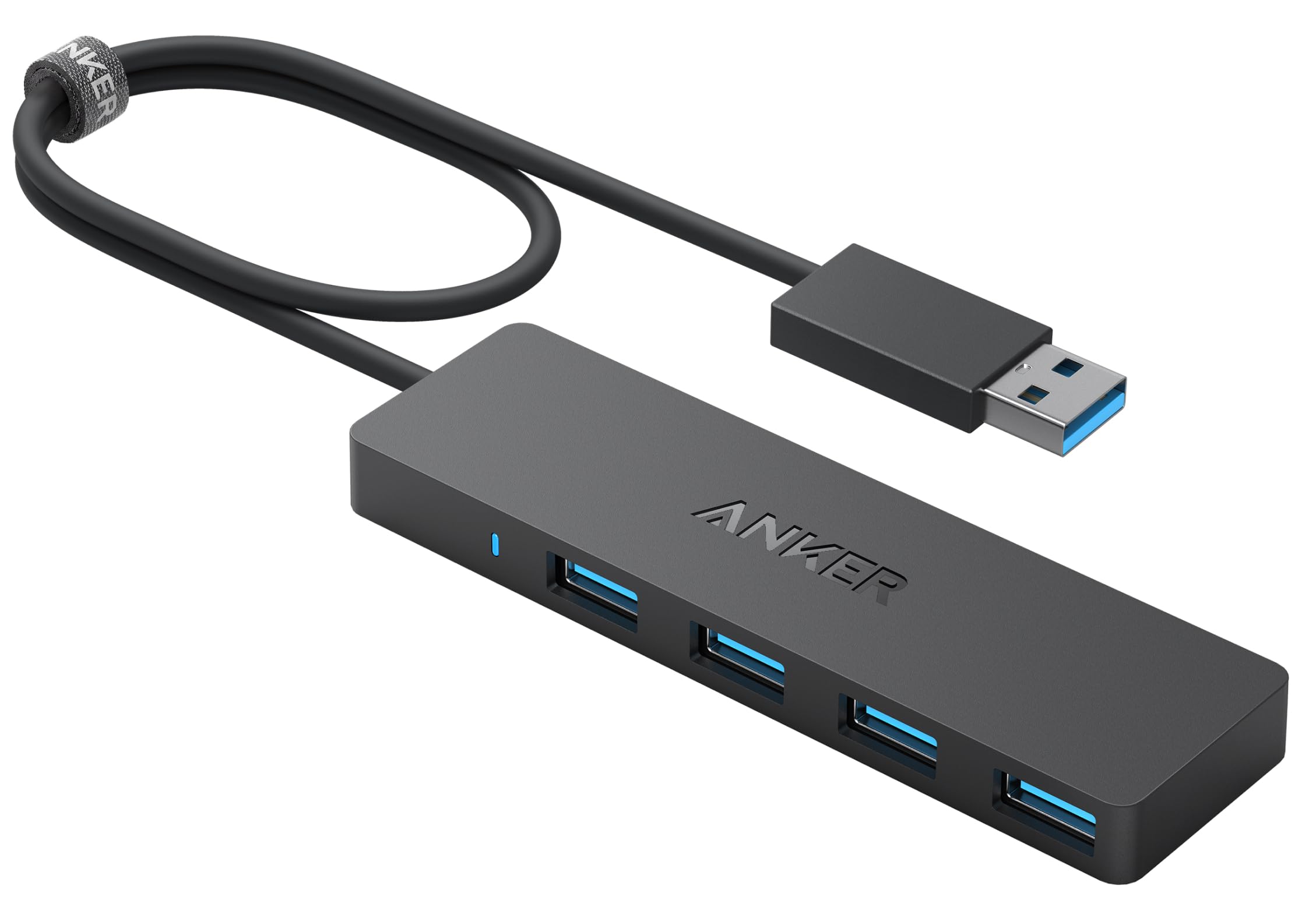
The Anker hub is the plainest answer to a new flat with too few ports. Four USB-A sockets share a 5Gbps link, which is enough for a mouse, a keyboard, a flash drive and a printer running at the same time. The 2ft cable gives a little slack between a laptop and the back of a desk, and the body is small enough to sit behind a monitor rather than on the desk. It draws power from the host device, so there is no adapter to lose during the move.
This pick suits anyone with an older laptop or a desktop tower whose rear ports are hard to reach. It earns its place on price and reliability rather than features. The caution is written into the product name: charging is not supported, so a phone plugged in here will trickle or not charge at all.
Trade-off: No charging and no video output, so it solves port count and nothing else.
2. 4-in-1 USB A Hub with Gigabit RJ45 — Best for Wired Internet
Type: USB-A hub with Ethernet
Ports: 3x USB 3.0, 1x 1000M RJ45
Network speed: Gigabit
Setup: Plug and play
Compatibility: Windows, Mac, Chrome OS; laptop, PC, MacBook, Surface, Dell XPS
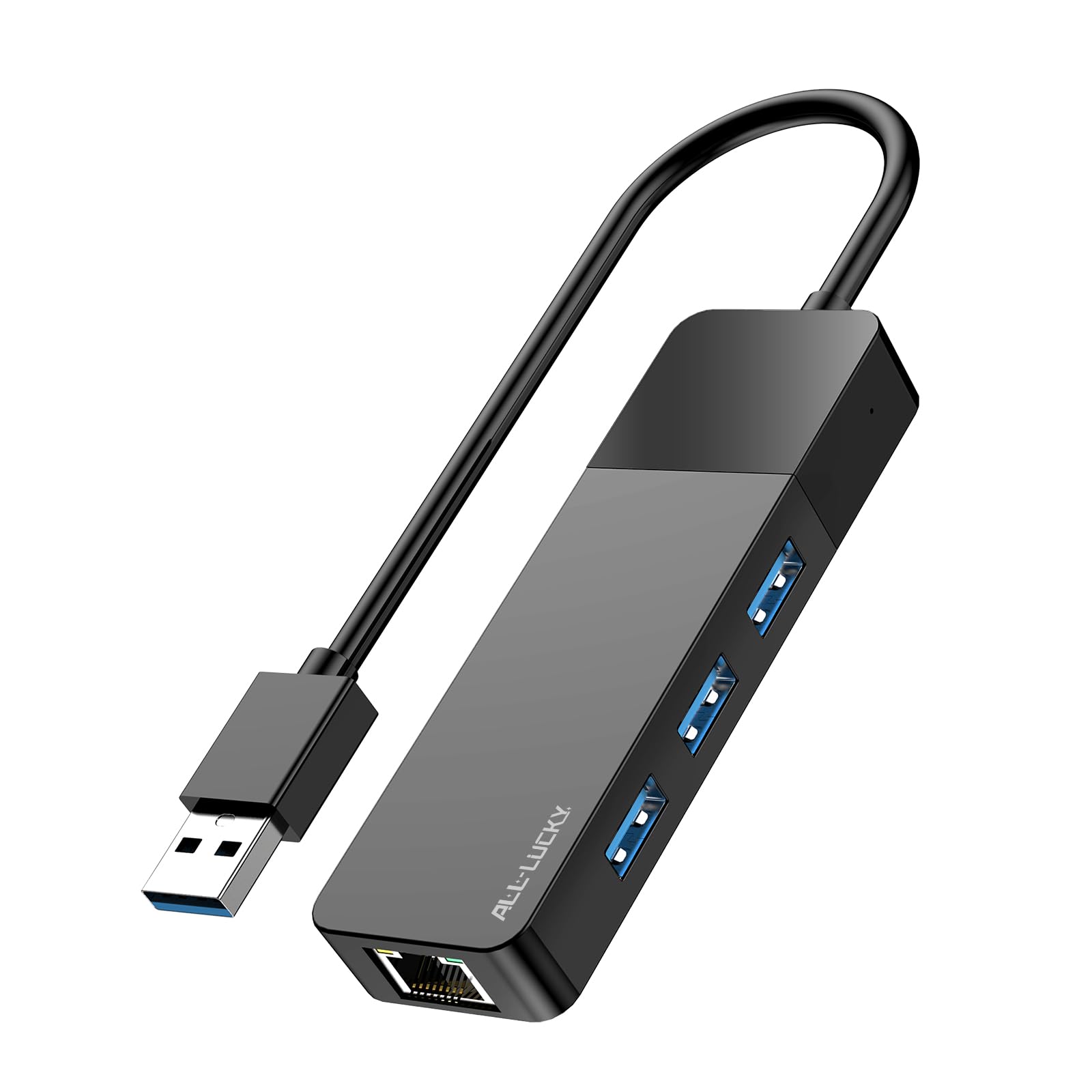
Flats with thick walls are where Wi-Fi disappoints, and this hub is the cheap fix. It adds a gigabit Ethernet socket alongside three USB 3.0 ports, so a laptop gets a stable wired connection and room for a keyboard and drive at the same time. Setup is plug and play across Windows, Mac and Chrome OS, which matters in a household with mixed machines. The compact body sits flat next to a router or on a desk shelf.
It suits renters who cannot run cable through walls and remote workers on video calls all day. The trade-off is that the Ethernet link and the USB ports share one host connection, so heavy transfers and a busy network compete for the same pipe.
Trade-off: One host link carries both network and data traffic, so it is not a docking station replacement.
3. USB C Hub 10-in-1 with Ethernet — Best for a Full Desk Setup
Type: USB-C desktop hub
Ports: 3x USB-A/C 3.2, 2x USB 2.0, SD/TF, Ethernet, HDMI
Power delivery: PD 100W
Video: HDMI 4K@60Hz
Data speed: 10Gbps
Build: Aluminum, 28° ergonomic angle, 1.64ft cable
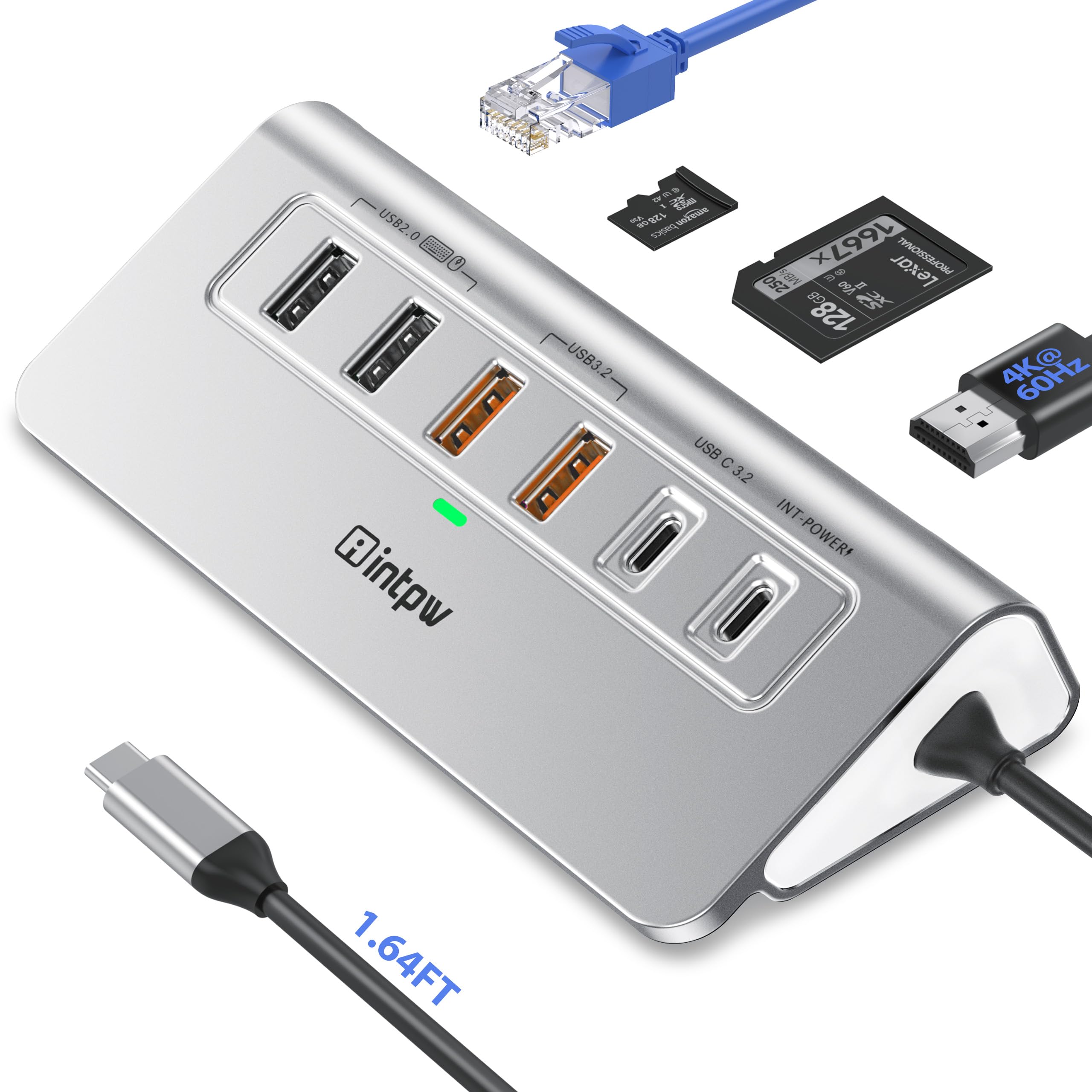
This is the pick for a desk that has to replace a full desktop tower. The aluminum body sits at a slight angle so ports face the user, and the 1.64ft cable reaches from a laptop stand to the back of the desk. Fast USB 3.2 ports, an SD and TF card reader, HDMI at 4K@60Hz and a gigabit Ethernet socket cover photo transfers, an external monitor and wired internet in one block. PD 100W pass-through means the laptop charger goes into the hub instead of the laptop.
It suits people setting up a permanent workstation in a small flat where the laptop doubles as the computer. It is the most expensive pick here and the one with the most to go wrong. The caution is heat: an aluminum hub passing 100W and driving a 4K display will run warm, so it needs open air rather than a drawer.
Trade-off: Premium price and real heat output make it overkill for anyone who only needs extra USB ports.
4. Rotating 4-in-1 USB 3.0 Hub, 2 Pack — Best for Two Rooms
Type: USB 3.0 hub with rotating body
Ports: 3x USB-A, 1x USB-C
Pack size: 2 hubs
Intended use: Laptop, PC, MacBook
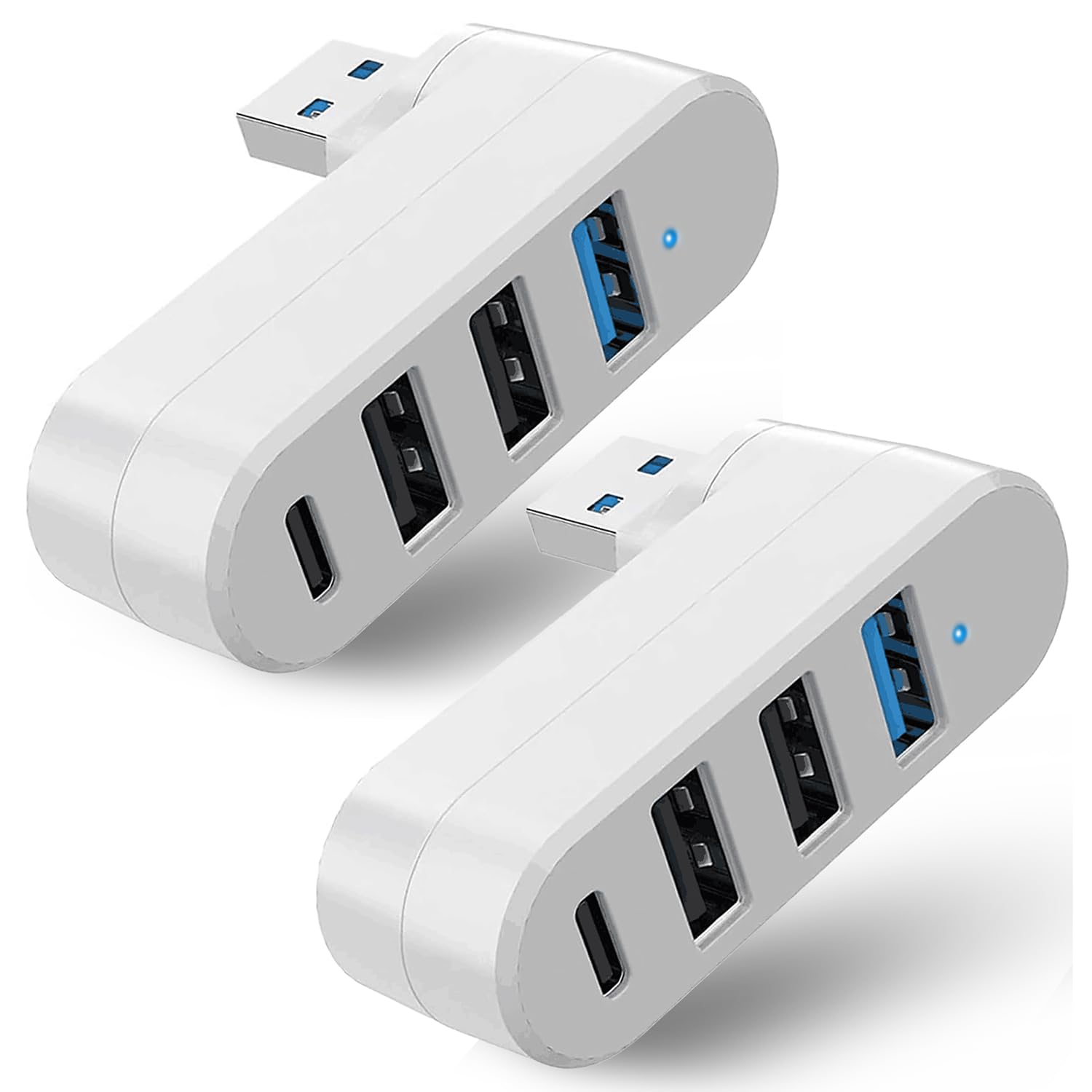
Two hubs for roughly the price of one is the reason this pack exists. The rotating head lets the plug fold to a right angle or sit straight, which helps when a laptop sits against a wall or a port is tight. Three USB-A ports plus a USB-C port cover a mouse, a drive and a phone cable, and USB 3.0 speeds are fine for everyday files. One hub can live in the living room and one at the desk, so nothing has to be unplugged during the move.
It suits a household with two laptops, or a renter who wants a spare for a second room. The trade-off is the plastic build and rotating joint that come with the price: this is a light-duty hub, not something to leave a portable drive hanging from.
Trade-off: The rotating joint and budget shell suit light accessories, not heavy or permanently attached gear.
5. BERLAT 7-in-1 USB C Hub — Best for Mixed Old and New Gear
Type: USB-C hub
Ports: 1x USB 3.0, 4x USB 2.0, 2x USB-C
Data speed: 5Gbps on the USB 3.0 port
Build: Aluminum casing
Setup: Plug and play
Compatibility: MacBook, PC, iPad, Xbox, PS4
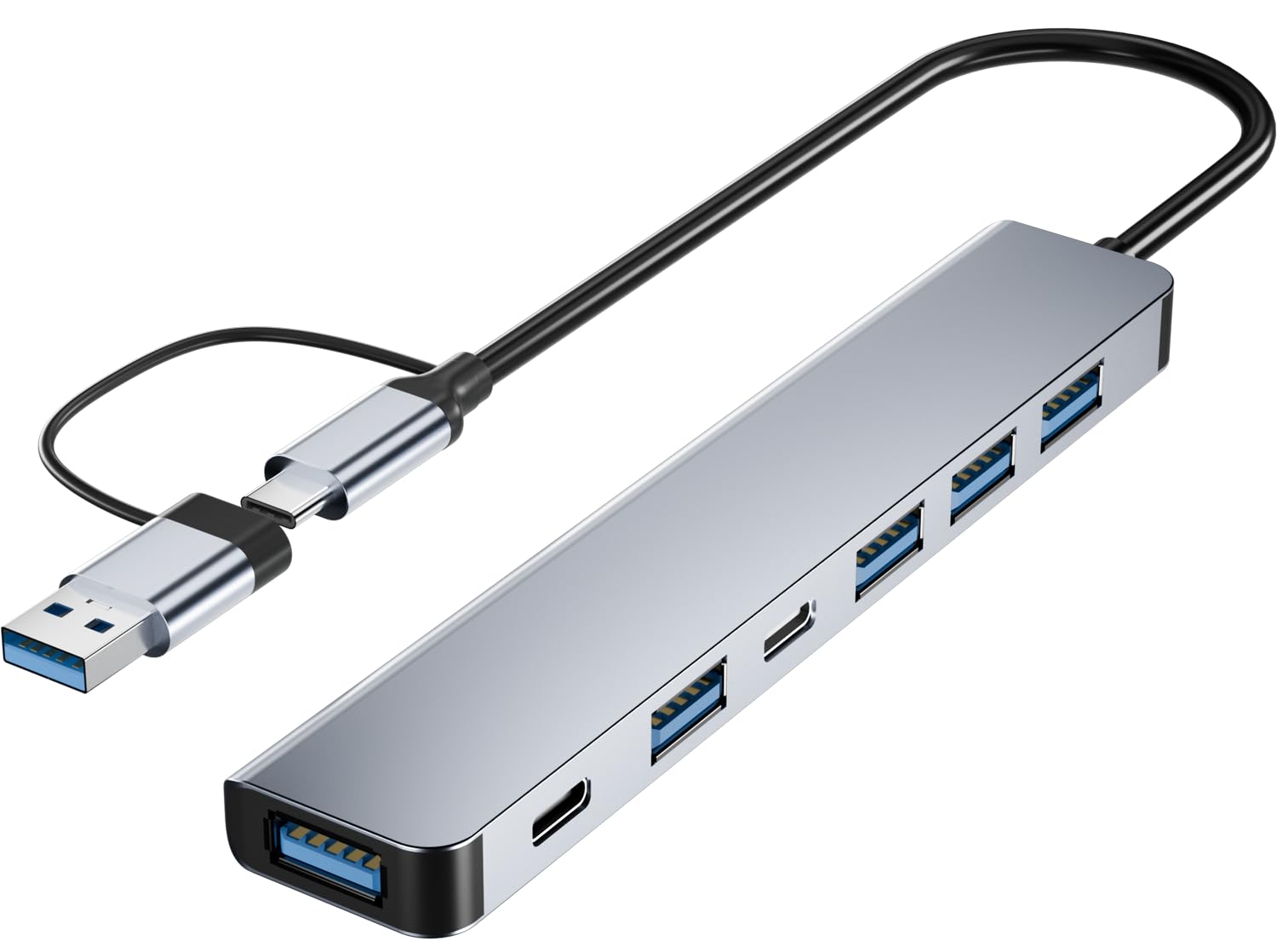
Seven ports in an aluminum shell at the lowest price here is the pitch. The layout is deliberate: one fast USB 3.0 port for a drive, four USB 2.0 ports for keyboards, mice, controllers and printers that do not need speed, and two USB-C ports for modern cables. Plug and play across MacBook, PC, iPad and consoles makes it the flexible choice in a flat where devices get shared between rooms.
It suits a household with a mix of old accessories and new USB-C hardware, and gamers who want controllers on a console. The caution is the USB 2.0 majority: anyone expecting to move large files from several drives at once will feel the slower ports.
Trade-off: Only one port runs at USB 3.0 speed, so multi-drive work is limited.
Before You Buy
- Ports: Count what actually gets plugged in — a mouse, keyboard, drive and phone cable is already four ports before a monitor or card reader.
- Host connector: USB-A hubs only fit older laptops and desktops; USB-C hubs suit modern laptops, tablets and consoles.
- Power delivery: A hub that passes laptop charging needs a PD rating, and a bus-powered hub will not charge a phone properly.
- Video output: Only a hub with HDMI drives an external monitor; a splitter with no video port cannot.
- Network: A gigabit Ethernet port is worth having in a flat with weak Wi-Fi, especially for calls and streaming.
- Build and placement: Aluminum sheds heat better than plastic; check the cable length reaches from the laptop to where the hub will sit.
- Charging limits: Hubs marked as not supporting charging are for data only, and that limitation does not change with the device.
Frequently Asked Questions
-
What does reconfiguring a hub in a new flat actually involve?
It means replacing whatever desk setup existed before with one hub that covers ports, internet and charging from a single connection, usually to a laptop. -
Does a USB hub need its own power supply?
Not always. Bus-powered hubs draw from the host device, which is fine for mice and drives, while hubs with PD pass-through take the laptop charger and share power. -
Can a USB-A hub work with a USB-C laptop?
Only through an adapter or a USB-C to USB-A cable. A native USB-C hub is the simpler choice for modern laptops. -
Why do some hubs have USB 2.0 ports?
USB 2.0 is cheap and perfectly adequate for keyboards, mice, printers and controllers, so budget hubs use it to keep the price down while reserving one fast port for storage. -
Will a hub slow down an internet connection?
A gigabit Ethernet port on the hub is faster and more stable than most Wi-Fi in a flat, but it shares the host link with other traffic during heavy transfers. -
Can a hub damage a laptop?
A reputable bus-powered hub is safe for standard accessories. The risk comes from overloading a single port with several power-hungry devices, which is why PD hubs exist.
Bottom Line
For most people reconfiguring a hub in a new flat, the Anker 4-in-1 USB Splitter is the fastest, cheapest way to get a working desk, and the gigabit Ethernet pick is the upgrade worth making if the flat’s Wi-Fi is weak. Buyers building a permanent workstation with a monitor and laptop charging should skip straight to the 10-in-1 USB-C hub.